You commented ANIMATION

10 Claude
animation styles.

You saw the reel. Here are the prompts.
One scene, ten completely different looks. Copy your favourite and make it your own.

Free to use. No email. No signup. Just create.

The reel that started it01 / PLAY

By @buildmeaiView on Instagram ↗

A little direction.
A lot of possibility.

10Animation styles
01Reusable base scene
100%Free prompt access

FROM PROMPT TO PLAY

Your animation starts here.

Use Claude Code + Remotion.
Keep the scene. Change the style.

01

Start with the scene

Open Claude Code in your project. Paste the base prompt below to set the action, camera and timing.

02

Give it a look

Choose one of the ten styles. “Copy prompt” includes the base scene by default, so you can start in one paste.

03

Preview. Refine. Render.

Ask Claude to build it with Remotion. Review the movement, ask for adjustments, then render your vertical MP4.

PASTE THIS FIRST

The base scene

Build a 5-second animated office scene in Remotion. Deliver a vertical 1080 × 1920 composition at 60 fps (300 frames).

An office worker in a shirt, tie and trousers walks to the right, carrying a small pile of documents on one arm. Track the worker with the camera while desks, screens, a window, a potted plant, a wall clock and a whiteboard move through the background. At 2.7 seconds, the top page comes loose, turns in the air and drifts behind the worker.

Animate the body as one connected rig: coordinate the hips, knees, ankles, shoulders and elbows. Keep planted feet fixed against the floor and let the torso rise and fall gently. Keep the worker easy to read against the background.

Use React and SVG for an illustrated style, or Three.js for a 3D style. Derive all motion from the frame number; seed any randomness so previews and renders match. Keep the scene, timing and camera consistent when changing visual styles. Apply the visual direction below, then provide the source and a rendered MP4.

Make it yours: swap the worker, location or little mishap. Keep the timing consistent to compare styles.

PICK YOUR VISUAL WORLD

Same scene. Ten ways.

Download all prompts
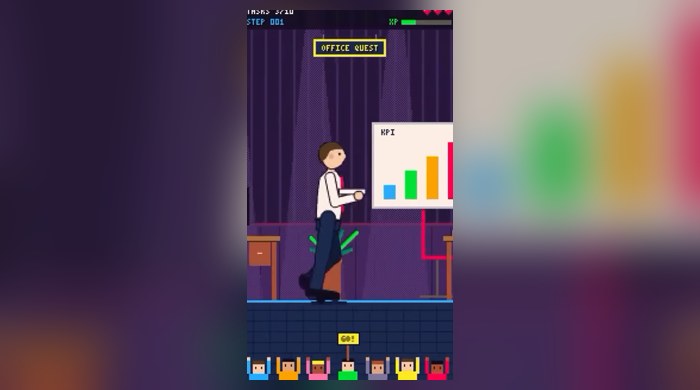
Pixel Art office animation from the BuildMeAI reel01 / 102D · GAME

Pixel Art

Retro pixels. Little details. Big game energy.

Read the style prompt
Give the scene a 16-bit side-scrolling game look. Render the artwork on a 180 × 320 logical canvas and enlarge it using nearest-neighbour scaling, with a small, consistent colour palette. Build a readable sprite walk with stepped poses and integer-aligned edges.

Set the office at sunset. Add an OFFICE QUEST sign, a task counter, an XP meter and three pixel hearts. Place a few cheering coworkers along the bottom. When the document escapes at 2.7 seconds, remove one heart, flash a small minus-one indicator and switch the cheering sign to OOPS. Keep the HUD anchored while the background scrolls.
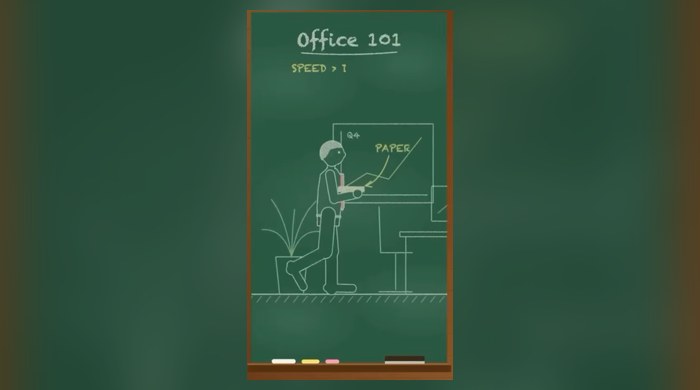
Chalkboard office animation from the BuildMeAI reel02 / 102D · HAND DRAWN

Chalkboard

An office story, drawn one chalk stroke at a time.

Read the style prompt
Draw the whole scene as a lesson on a green school chalkboard, bordered with wood and a small chalk ledge. Use uneven off-white chalk lines, restrained yellow highlights and a fine chalk-dust texture. Let diagrams and annotations write themselves onto the board.

Add a heading about office life, an arrow toward the documents and a small speed diagram. At the page-drop moment, draw a dashed arc along its flight, change the paper count from five to four and add a handwritten warning. Make the drawing feel handmade while keeping the worker silhouette and every annotation legible.
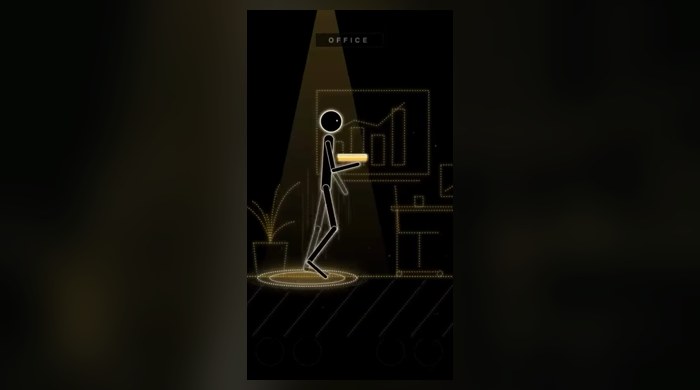
Glow Sketch office animation from the BuildMeAI reel03 / 102D · LIGHT

Glow Sketch

Golden light, sketched against the dark.

Read the style prompt
Use a near-black canvas with the worker and office described by delicate dotted gold strokes. Combine a sharp line core with a wider, low-opacity glow; avoid turning every edge into a fuzzy blob. Keep most surfaces unfilled.

Follow the worker with a soft cone of light and a warm elliptical halo on the floor. Draw a small office label near the top. Let the loose page brighten briefly and leave a short fading trail as it falls behind. Use empty space and a restrained gold-on-black palette so the movement carries the scene.
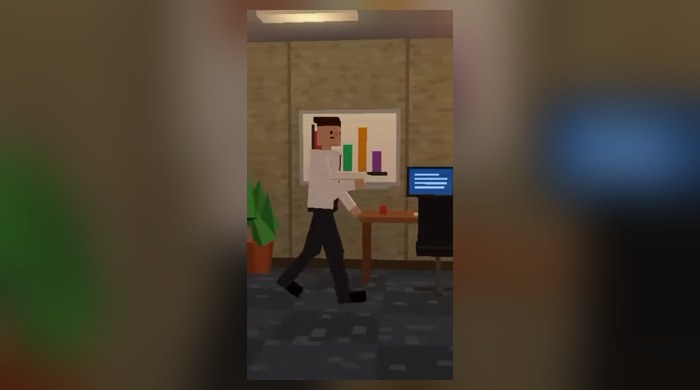
PS2 Style office animation from the BuildMeAI reel04 / 103D · RETRO GAME

PS2 Style

Low polygons, warm windows, early-2000s nostalgia.

Read the style prompt
Build the office and character as low-poly 3D models reminiscent of early-2000s console games. Use angular silhouettes, small nearest-filtered textures, simple shading and a limited draw distance softened by fog. Give the windows a warm evening glow.

Render the 3D scene at roughly one-third of the final resolution, then enlarge it without smoothing. Add very faint scanlines while preserving the action. Use a simple articulated worker with the same walk timing and document-drop event. Keep the camera steady and the nostalgia in the geometry and texture treatment.
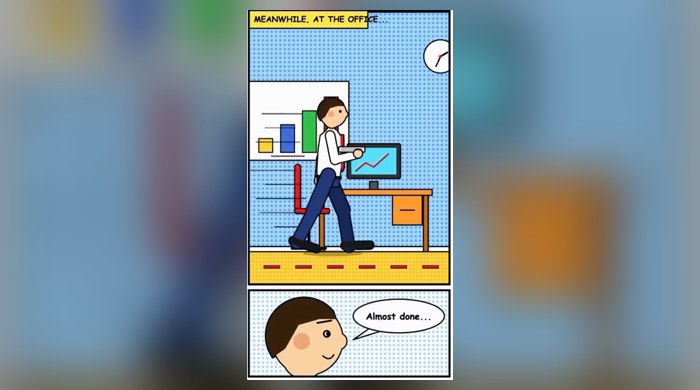
Comic Art office animation from the BuildMeAI reel05 / 102D · COMIC

Comic Art

Bold ink, halftone dots, and a dramatic WHOOPS.

Read the style prompt
Turn the animation into a colourful printed comic with heavy black contour lines, halftone shading and graphic speed lines. Use two panels: the walking office scene above, and a close-up reaction below. Frame both panels with a bold black border.

Start with a narration box establishing the office scene and a calm speech balloon in the close-up. When the page slips, snap in a bright starburst with WHOOPS!, switch the close-up to a shocked expression and add a short reaction bubble. Keep all lettering inside safe margins and make the page-drop timing identical to the base scene.
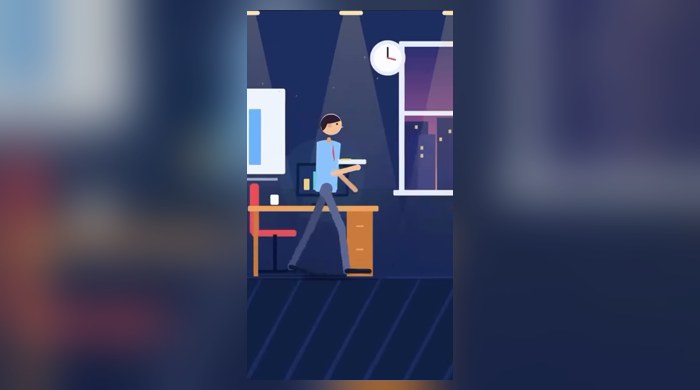
Flat Vector office animation from the BuildMeAI reel06 / 102D · ILLUSTRATION

Flat Vector

Clean shapes. Quiet shadows. A softer office.

Read the style prompt
Use polished flat vector illustration: simple filled silhouettes, no outlines and only a few soft shadows. Set the office in a dusk-blue palette with a large window, a layered city skyline and a small moon. Add simple ceiling lamps with translucent light cones.

Give the worker a pale blue shirt, a warm red tie and a minimal face. Separate the arms and legs with colour and silhouette instead of extra detail. Keep the papers off-white and add two or three understated motion marks to the loose sheet. Use smooth easing and generous negative space.
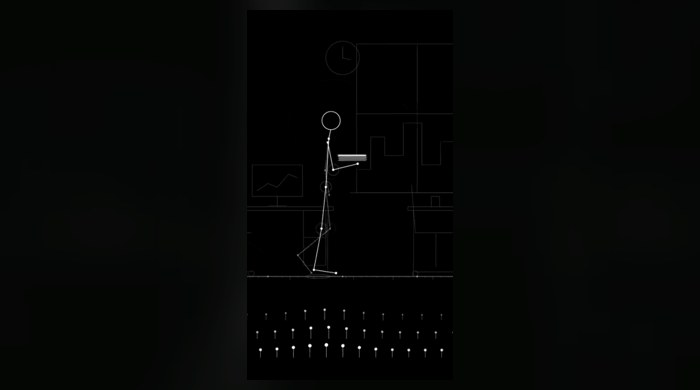
Minimal Line office animation from the BuildMeAI reel07 / 102D · LINE ART

Minimal Line

Only the lines that matter.

Read the style prompt
Reduce the scene to fine white lines on black. Describe the worker with a sparse articulated figure, tiny joint dots and subtle rotating joint rings. Draw office objects as economical wireframe outlines, with large faint construction circles in the background.

Make the escaping page the brightest object for a moment, then follow it with a short dashed trajectory. Add a row of small vertical pins near the floor that react in a wave as the worker passes. Preserve the natural connected walk cycle even though the artwork is minimal. Keep glow and decorative marks very restrained.
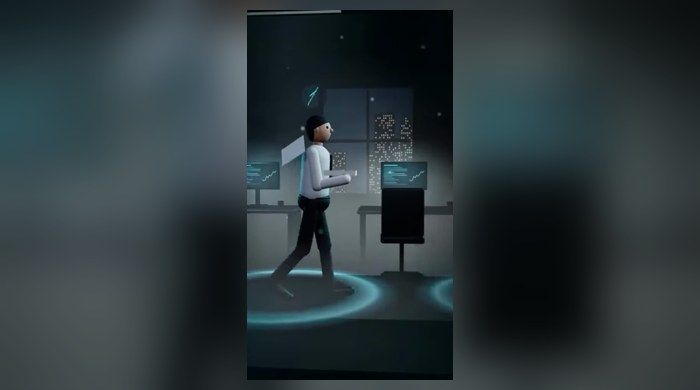
CGI Motion office animation from the BuildMeAI reel08 / 103D · CINEMATIC

CGI Motion

A cinematic night shift in cyan and shadow.

Read the style prompt
Create a cinematic 3D office at night. Use dark materials, soft cyan edge lights, luminous monitors, distant city windows and a glossy floor with believable reflections. Add subtle volumetric-looking light layers and a small amount of seeded drifting dust.

Place pools of light under the ceiling fixtures and use them to reveal the worker as the camera tracks. Give the page a readable edge light when it comes loose. Use filmic tone mapping, controlled bloom and soft shadows; protect highlight detail. Keep atmosphere secondary to the character animation and the clarity of the falling paper.
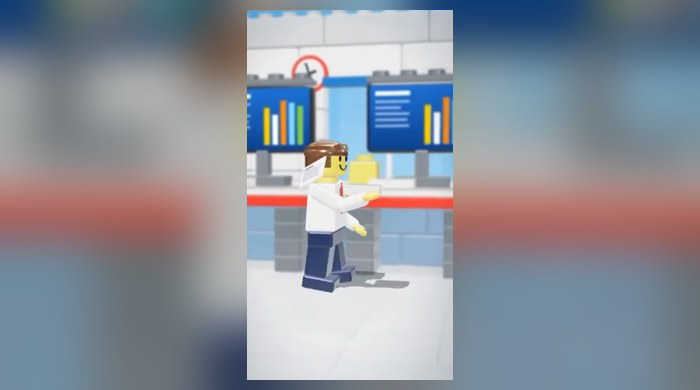
Lego Style office animation from the BuildMeAI reel09 / 103D · TOY BRICKS

Lego Style

Tiny plastic bricks. A very serious workday.

Read the style prompt
Rebuild the scene from glossy interlocking toy bricks. Show studs on appropriate top surfaces, small bevels along the edges and physically plausible plastic reflections. Use a cheerful yellow-headed minifigure with a simple face, a moulded hair piece, a white shirt, a red tie and curved toy hands.

Swing the rigid legs from the hips and articulate the shoulders within the limitations of a toy figure. Lay out the office on pale grey floor tiles in bright, soft daylight. Let the papers remain thin readable props. Use soft contact shadows and a slightly blurred background, with the dropped page clearly visible.
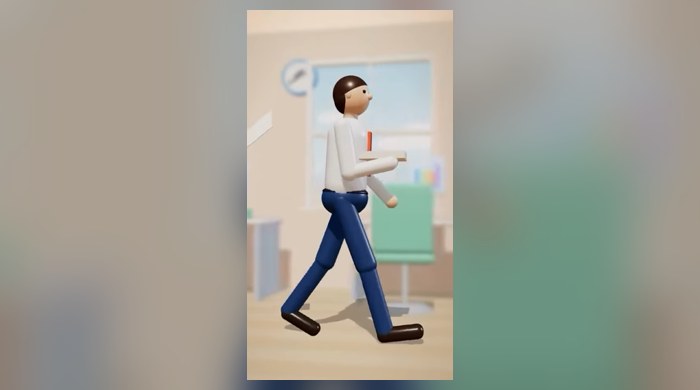
Explainer 3D office animation from the BuildMeAI reel10 / 103D · EXPLAINER

Explainer 3D

Pastel colours and smooth, tactile little worlds.

Read the style prompt
Make a friendly 3D explainer scene with rounded forms, smooth clay-like surfaces and a few glossy plastic accents. Use a pastel peach and mint office, soft daylight and broad, gentle shadows. Simplify facial features while keeping the worker expressive.

Frame the worker from a slightly low three-quarter angle, close enough to see the documents and the walk. Keep the subject sharp and the office softly out of focus, using a separate blurred background layer if needed for reliable rendering. Add a grounded contact shadow. Preserve the same paper-drop event and avoid distracting camera movement.

Showing 10 of 10 styles. All prompts are free.

Preview stills are from the reel. Prompts below are reusable directions for recreating each look.

ONE MORE THING

Turn your styles
into one great reel.

Once your individual scenes are ready, bring them together with a simple compilation prompt.

Before exporting: check the walk cycle, paper drop, readable labels and mobile safe areas.

Create a vertical 1080 × 1920 Remotion compilation of these 10 versions. Use a dark background with a clear title, “10 Claude Animation Styles”. Keep a numbered list of style names on the left and a tall preview on the right. Highlight the name of the style currently playing.

Show each style for about 1.2 seconds. Move between previews with a clean horizontal wipe. End with a grid of six selected clips and the text “Pick a style. Make it yours.” Keep labels comfortably inside mobile safe areas. Render the complete sequence to an MP4.

A FEW QUICK ANSWERS

Before you create.

Are all the prompts free?

Yes. Read, copy or download all ten style prompts and the base scene immediately. No email or account is required on BuildMeAI. Claude and any tools you use have their own access and pricing.

Do I need Claude Code?

Claude Code is the intended workflow because it can create project files and run the render. You can also use a coding assistant that can build a React/Remotion project. A chat preview alone is not the final MP4.

Can I change the scene?

Absolutely. Try a chef carrying plates, a robot delivering a package or a student late for class. Replace the scene in the base prompt, then apply one visual style at a time.

Will one prompt reproduce the reel exactly?

These prompts describe the look and action. Your first result will vary. Preview it, then ask for specific changes to poses, camera, lighting or timing before rendering.

Keep making things.

More useful ideas, from my corner of the internet to yours.

Style inspiration: Tony’s animation playbook. Adapt the prompts, try a new scene, make something of your own.

Your prompt is ready

Select and copy the text below.