Zuno guide / Downloads cleanup
How to clean up Downloads on a Mac
To clean up Downloads on a Mac, review the files in Finder or connect that folder to Zuno. Check filenames, locations and whether you still need each item. Select only confirmed clutter, review the selection, then move it to Trash. Storage is reclaimed after Trash is emptied.
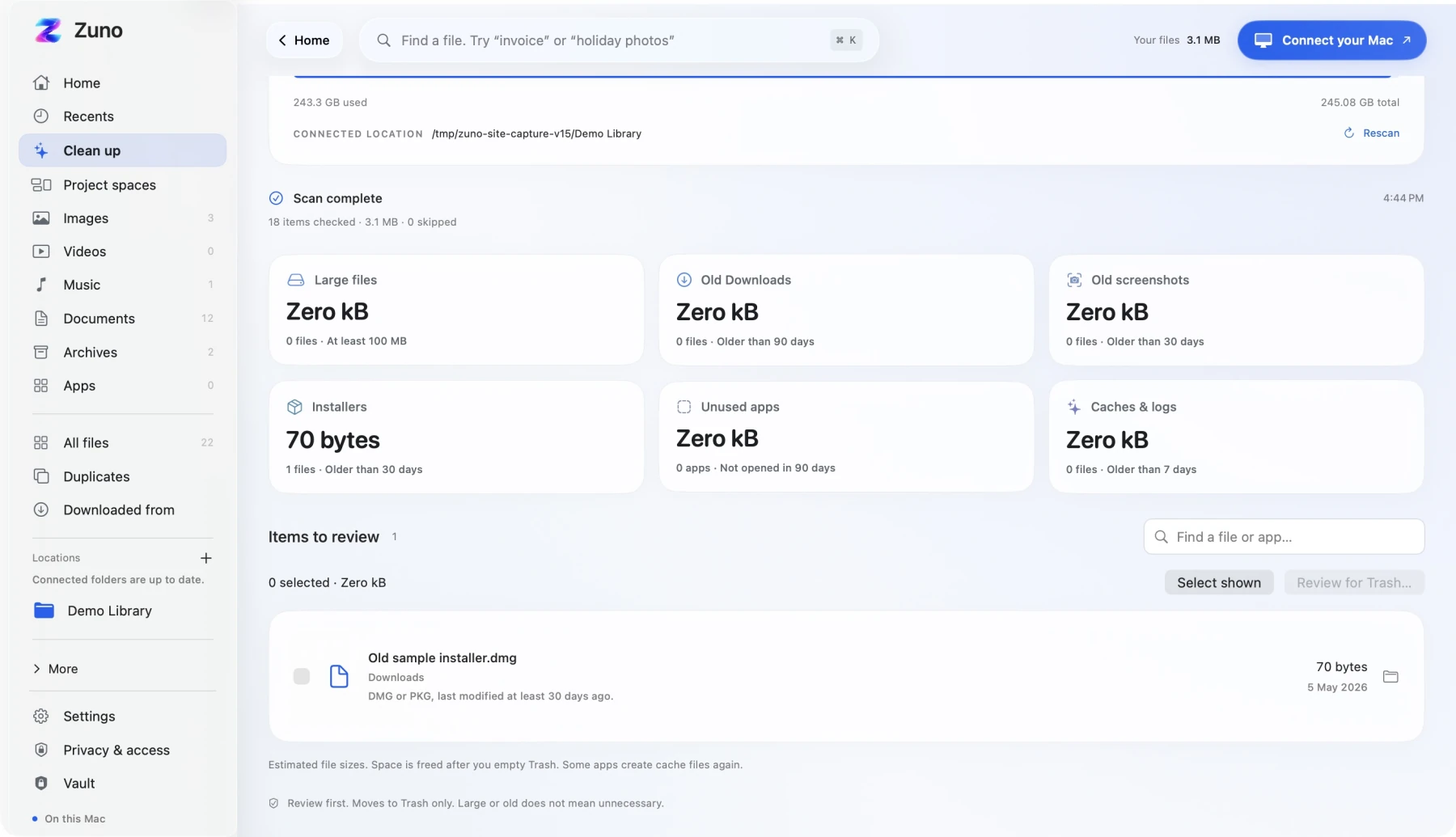
Downloads is easy to fill because almost everything starts there: an app installer, an invoice, a client delivery, an image you needed once. The hard part comes later, when those files sit together without much context.
Start with this one folder. A useful cleanup session can be a handful of decisions you understand.
Which downloads are worth reviewing?
Imagine Downloads contains an old DesignApp.dmg and a Client-delivery.zip. The installer may be disposable after you have confirmed that the installed app works. The archive might contain the only copy of a client's source files. Their age alone cannot tell you which one to keep.
Before selecting anything, check what it contains, whether another usable copy exists, and whether the current project still depends on it. Keep uncertain files while you investigate. Saving important work in a deliberate project location, with a backup, is more useful than repeatedly guessing about it during cleanup.
Start with Finder if you only have a few files
Open Downloads in Finder and use List view to compare names, sizes and modification dates. Click a column heading to change the order. Apple's Finder view guide explains the available layouts and sorting controls.
Inspect the files you recognize. Once you have decided an item is unnecessary, select it and press Command-Delete to move it to Trash. Finder can be enough for a short list; Zuno adds a dedicated candidate list and review screen when you want that workflow.
Review your Downloads folder with Zuno
The following steps keep the decision close to the file's name and location. Zuno works with folders you approve, so begin with Downloads rather than expanding the task to every folder on your Mac.
- Connect Downloads. In Zuno, use the folder connection control and select your Downloads folder in the macOS picker. Give the library time to read the approved location.
- Open Clean up. Check the connected location shown in the cleanup view. If you have connected several folders, check each candidate's path to confirm it belongs to Downloads.
- Look through Installers and Old Downloads. These categories help narrow the review. A suggestion means a file matches a cleanup category; it does not establish that you no longer need it.
- Inspect before selecting. Read the filename, size and full location. Use the file's Finder action when you need more context. Select only the files you have decided to remove.
- Choose Review for Trash. Read the exact selection in the confirmation screen. Cancel if something looks unfamiliar or you need to check it again.
- Confirm the reviewed selection. When you are satisfied, choose Move to Trash. Zuno checks the selected items again before moving them. Nothing moves merely because a scan found it.
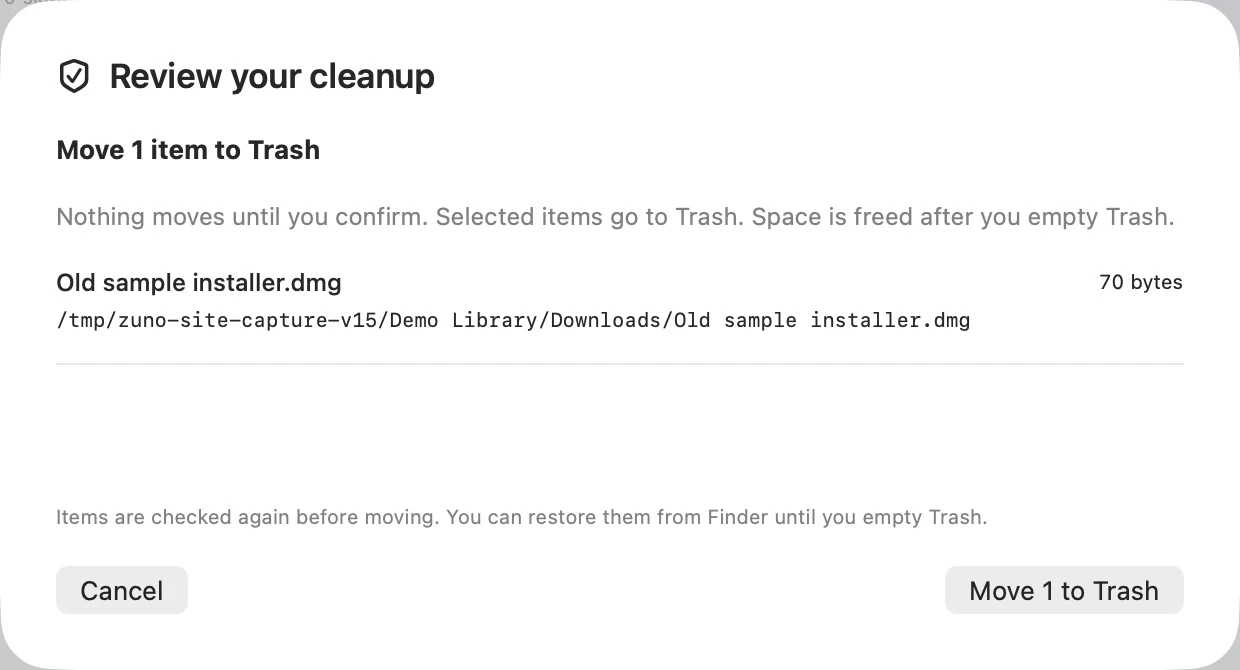
Check the result before emptying Trash
Moving files to Trash does not immediately release their storage. While an item is still there, Finder's File → Put Back can restore it. Emptying Trash permanently removes those items. Check the selection before taking that separate step. Apple's Trash and file recovery guide explains the behavior.
A finished review may leave some old downloads untouched. That is a reasonable result when you still need them. The goal is to know why each selected file can go.
Downloads cleanup questions
Can I delete everything in Downloads?
Only if you have checked that none of it is needed. Downloads may hold original documents, project assets or archives with no other copy. Review contents and existing backups before deciding.
Does deleting a DMG uninstall the app?
An installer disk image and an app copied into Applications are separate files. Confirm where the app is installed and that it opens from there before removing its installer. Keep installers you may need again. See Apple’s guide to installing and removing Mac apps.
Does Zuno clean Downloads automatically?
No. Zuno finds candidates in connected locations. You select the items, review their paths and confirm the move to Trash.
Make one folder easier to manage
Explore Zuno Cleanup if you want a review screen alongside your file library. Zuno is $5 once for one Mac running macOS 14 or later. Internet is required for activation and periodic license checks.
For the files you keep, the next step may be organizing a client project's files or keeping encrypted copies of private documents.