FILE ORGANIZER FOR MAC

Your Mac files.
A little more together.

Zuno brings scattered files into one searchable Mac library.
Organize projects, review clutter, and keep encrypted copies in Vault.

Explore Zuno

One-time purchase · 1 Mac · macOS 14+

Taxes and local currency shown at checkout.

v0.1.0 · Build 16 · 13.0 MB installer · A $5 license is required.

Native Mac app Your files are processed locallyApple silicon & Intel
YOUR FILES, IN GOOD COMPANYMeet your calmer workspace
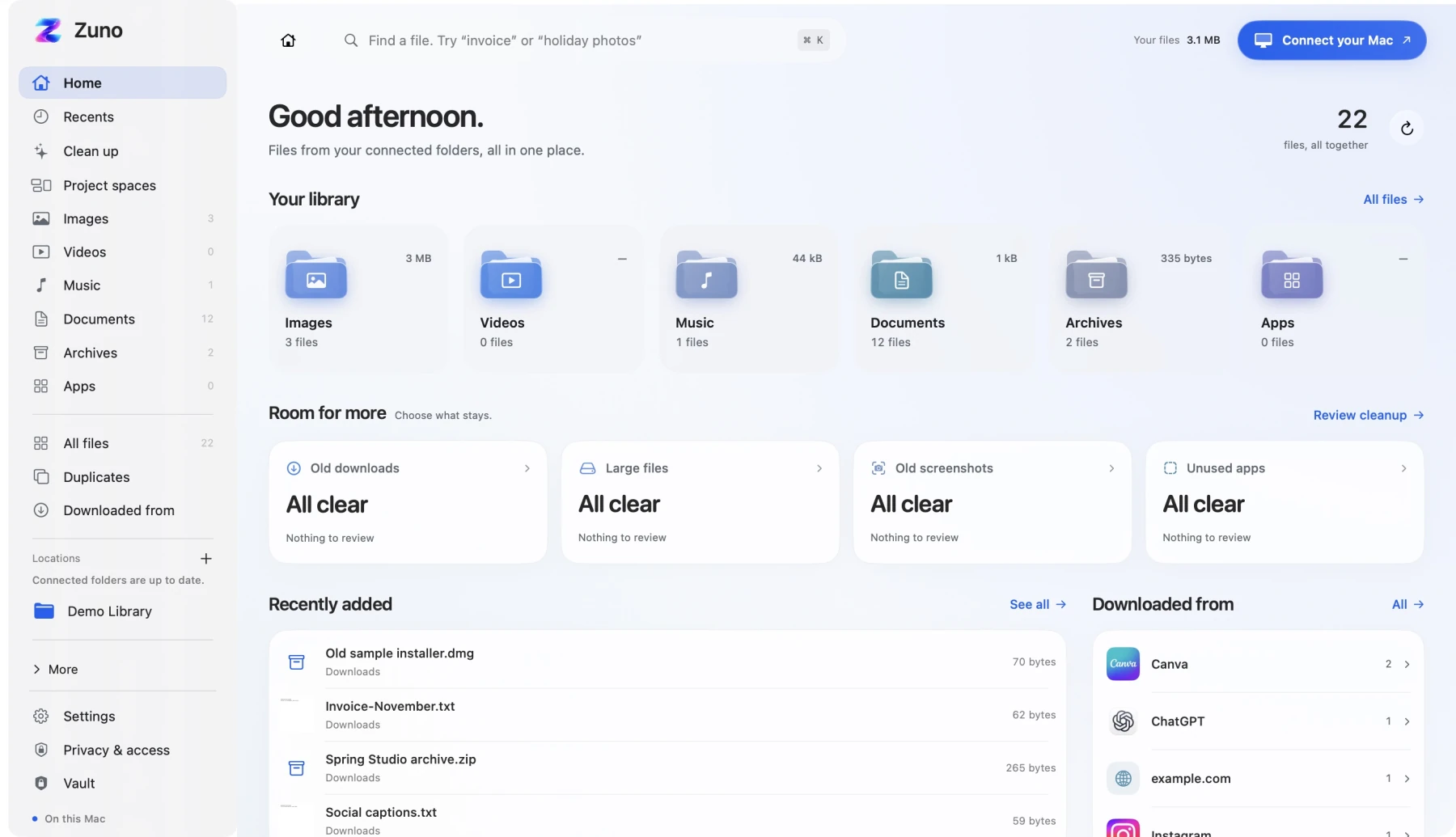
Zuno Home with six file categories and a connected demonstration library.
Zuno, build 15 · Demo library · Tap to explore
Find your everyday files Bring projects together Review before cleanup Keep encrypted copies

LESS DIGGING. MORE FINDING.

A place for the things
you’re looking for.

The document you need. The project in progress.
A little room for whatever comes next.

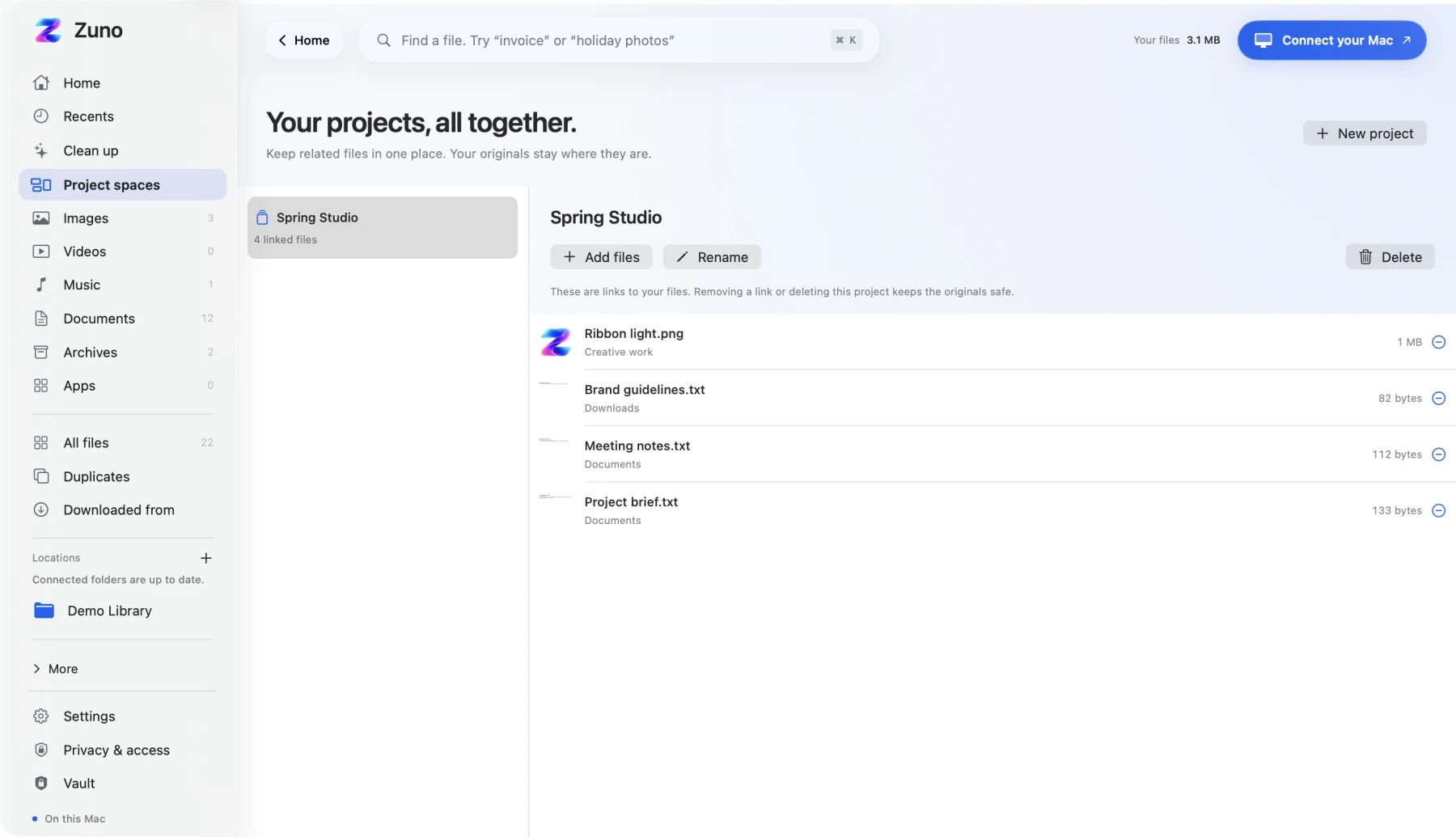
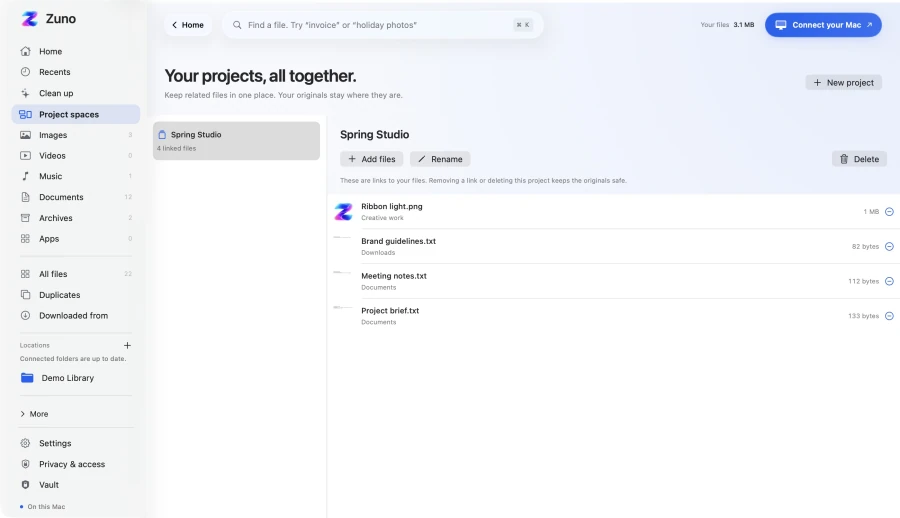
The Spring Studio project collects four linked demonstration files without moving their originals.
Zuno, build 15 · Demo library · Tap to explore

Collect links to the brief, the images, and the final PDF in a project. Every original stays where it belongs.

Explore Zuno with a demonstration library. No files on your Mac are accessed by this website.

SMALL MOMENTS. A LITTLE EASIER.

Organize files on your Mac.
Keep projects in view.

YOUR MAC FILE ORGANIZER

Your project files.
Together in one space.

The brief is in Documents. The images are in Downloads. Bring links to them together in one project space, ready for the next time you sit down.

  • Collect links to indexed files
  • Add, rename, and remove project spaces
  • Keep every original exactly where it is
A collection of links. A lot less back-and-forth.
The Spring Studio project collects four linked demonstration files without moving their originals.
Zuno, build 15 · Demo library · Tap to explore

A LITTLE CONTEXT GOES A LONG WAY

Remember where
it came from.

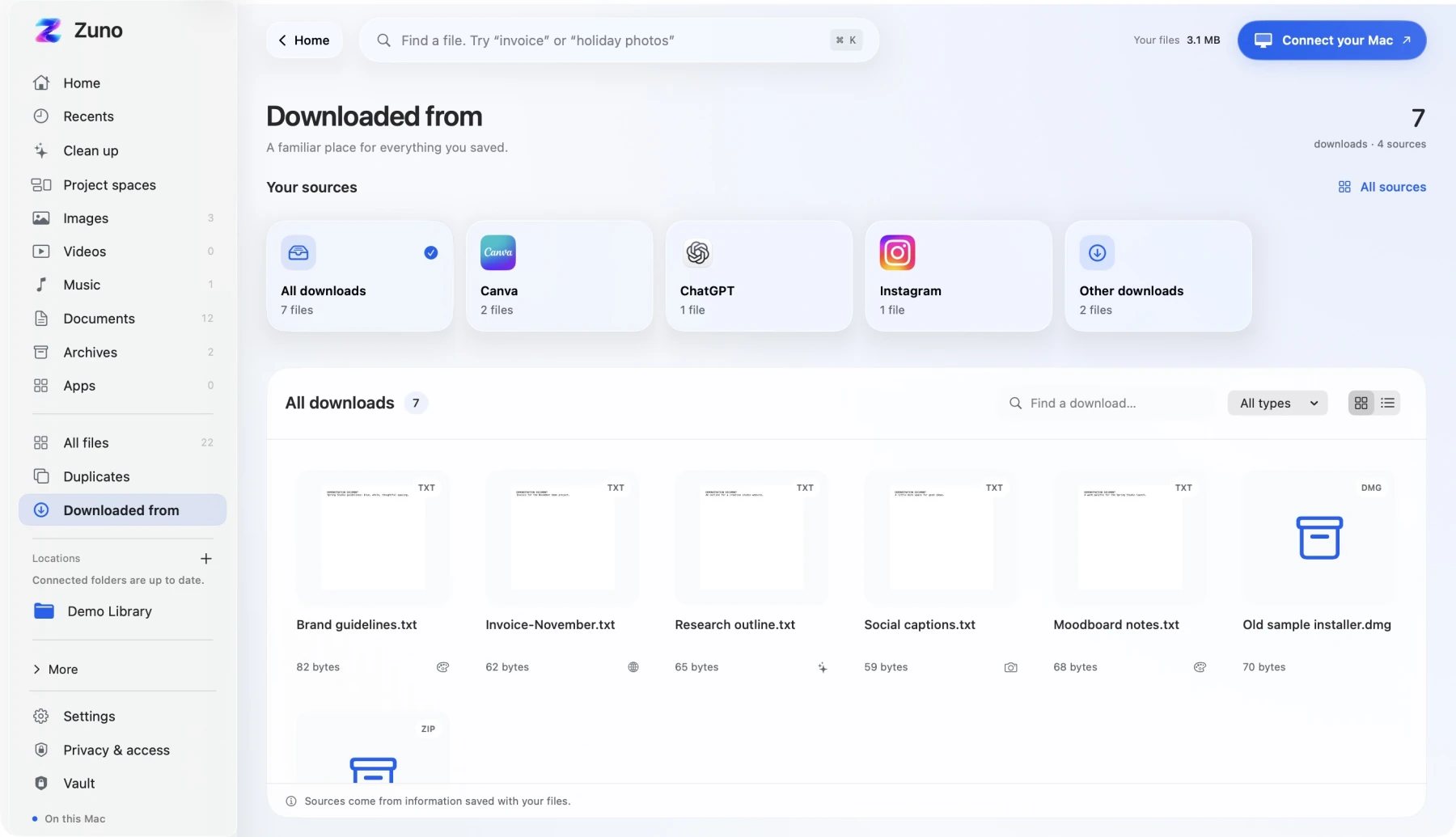
That Canva export. The image from Instagram. A file from ChatGPT. Browse your downloads by their saved source, with previews that make the right one easier to spot.

  • Source cards with familiar names and icons
  • A thumbnail grid or a compact list
  • Search and file-type filters in the same view
Uses source information saved with a file when available. No account connections needed.
The new Zuno Downloads view with Canva, ChatGPT and Instagram source cards above a grid of demonstration files.
Zuno, build 15 · Demo library · Tap to explore

Take a closer look.

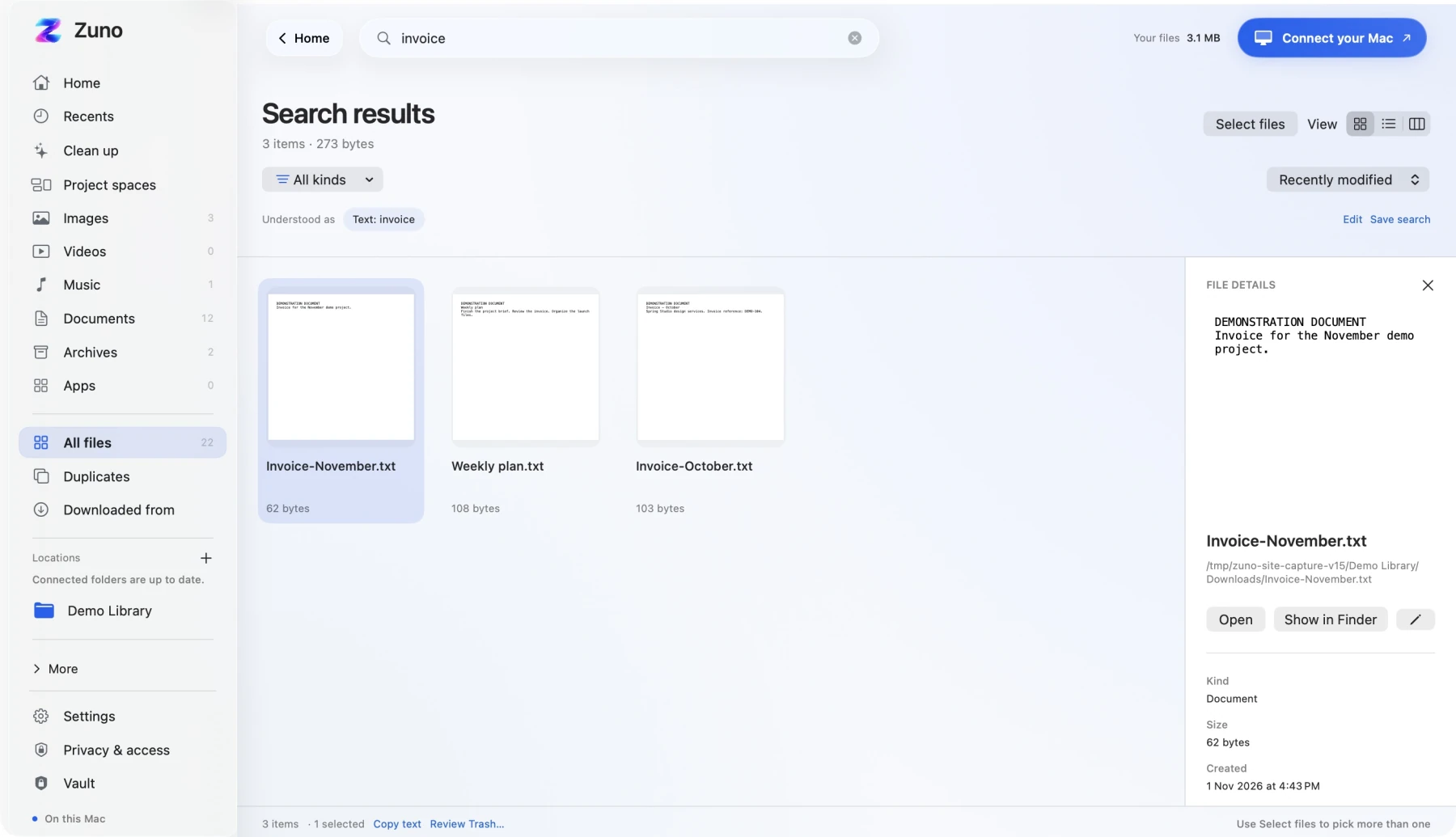
Native previews and an inspector, with grid, list, and parent-folder column layouts.

A fresh look at repeats.

Find identical files, or review similar photos separately. You choose what to keep.

Keep a useful search.

Save the searches you come back to, so the next visit starts one step ahead.

ZUNO CLEANUP

Meet Cleanup.

A lighter library. On your terms.

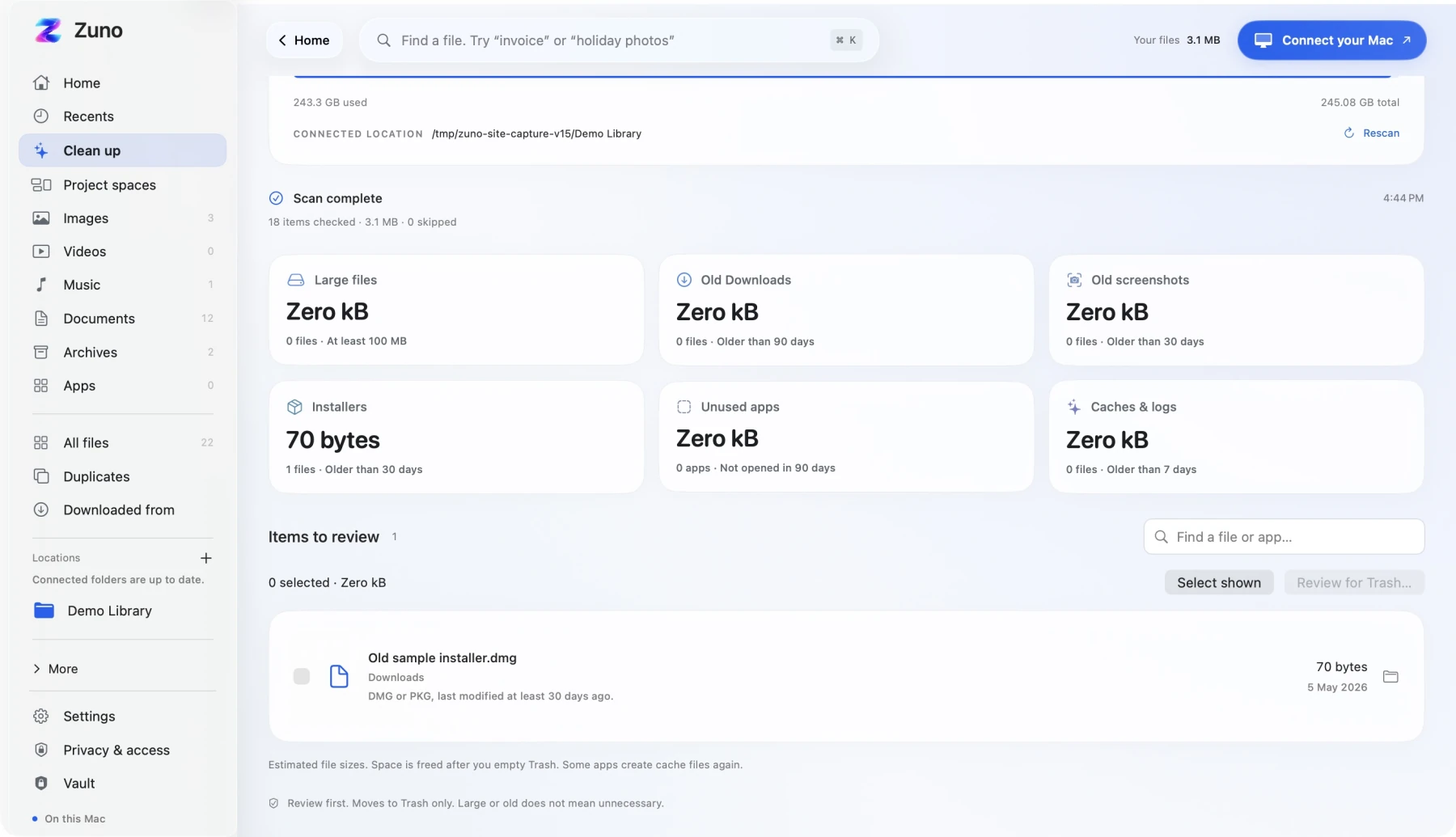
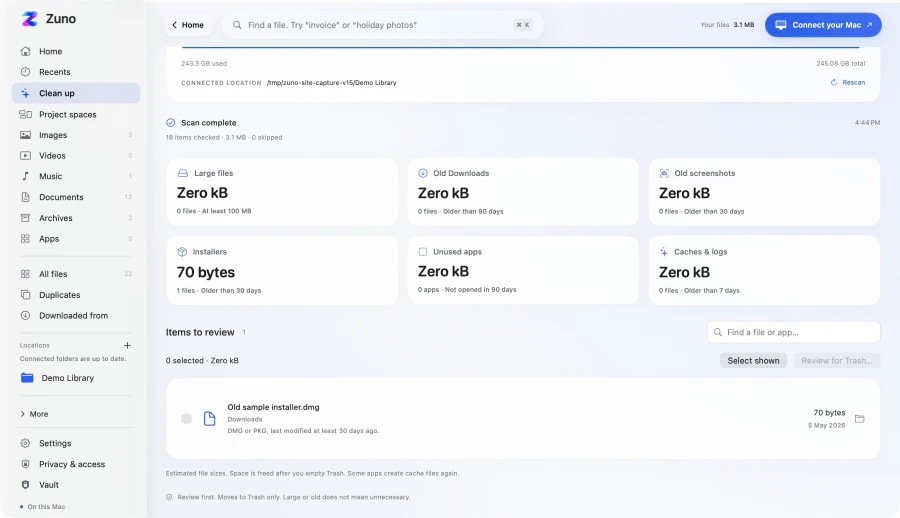
Old downloads. Forgotten installers. Files that got a little too big. Zuno gathers the candidates, so you can see what’s worth keeping—and what you’re ready to let go.

Zuno Cleanup shows six categories and a disposable installer candidate in a connected demonstration folder.
Real app capture · Demo files; storage readings are from the capture Mac

THE FINAL WORD IS YOURS

A clear view.
Then a clear choice.

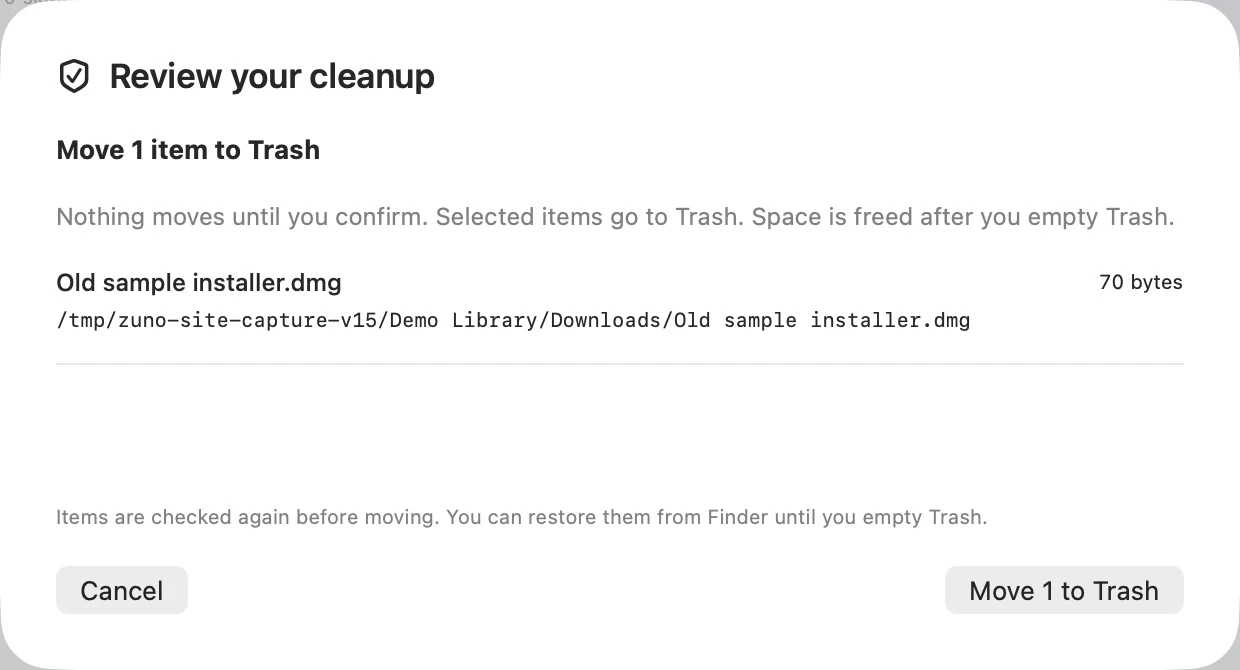
See exactly which files are about to move. Zuno checks them again before sending your selection to macOS Trash.

No automatic deletion. No surprises.
The real Zuno cleanup confirmation for one disposable demo installer, before Move to Trash.
Zuno, build 15 · Demo library · Tap to explore
01

See what’s there.

Large files, old downloads, installers, screenshots, and selected caches or logs. Review app suggestions, too.

02

Give it a second look.

Review the actual file paths and make your selection. Keep anything you still need.

03

You make the call.

Confirm Move to Trash when you’re ready. Nothing is deleted automatically.

Exact duplicates are matched by file contents. Similar photos have a separate review, with no automatic selection. Available candidates depend on the folders you connect.

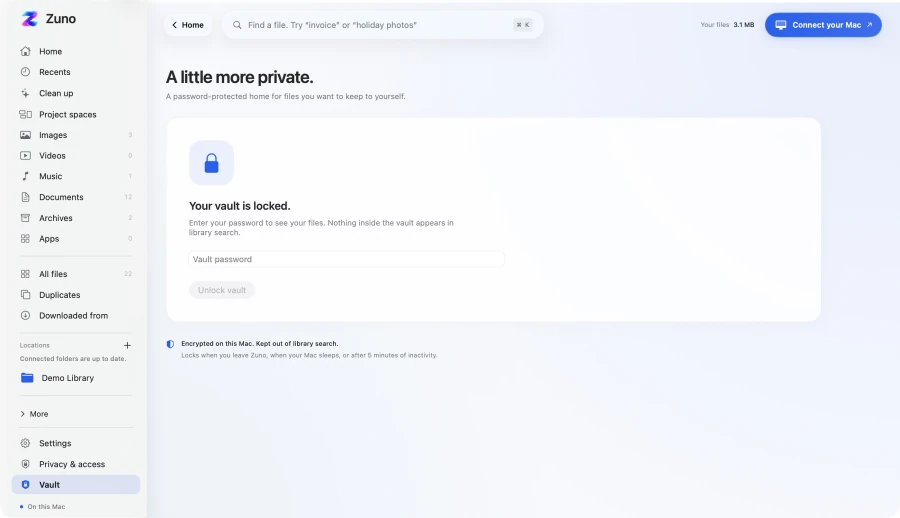
ZUNO VAULT

A private place.
Built in.

For your files. For your eyes.

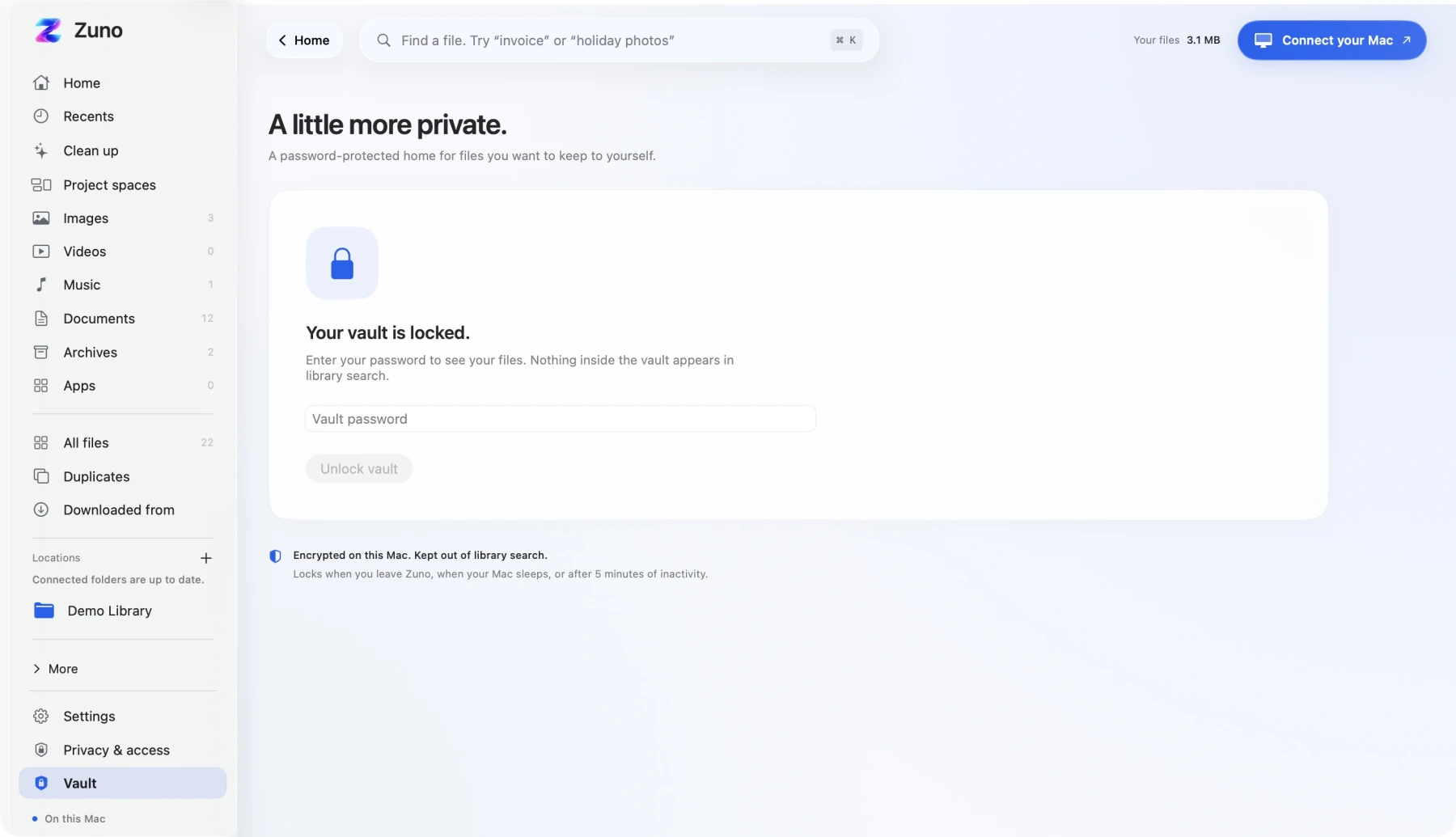
Some documents deserve their own space. Keep encrypted copies of sensitive files in your Vault, protected by a password you choose. Even their filenames are encrypted.

The locked Zuno Vault.
Zuno, build 15 · Demo library · Tap to explore
01

Choose your password.

Set up your Vault with a password. Keep it somewhere safe—it can’t be recovered if forgotten.

02

Keep a private copy.

Import regular files to create encrypted Vault copies. For a folder, use a suitable archive first.

03

Lock it. Leave it.

Lock your Vault when you’re done. Unlock with your password to export decrypted copies when needed.

Vault protects its copies and filenames. Original files and exported copies stay outside Vault protection. It does not lock originals in Finder or encrypt the normal search index.

A SIMPLE START

Connect once.
Keep your folders in view.

A little setup. A clearer everyday.

01

Make it yours.

Get Zuno and activate it on your Mac with your license key.

02

Choose your folders.

Connect the locations you want through the macOS folder picker.

03

Find your bearings.

Browse and search while indexing progresses. Your library grows as files are indexed.

The same approved folders feed your library and cleanup. Protected locations may need additional macOS permission.

FOR THE EVERYDAY

Life happens.
Files follow.

A few familiar moments
that feel better with Zuno.

01

The application is due today.

Find Resume.pdf before the opportunity moves on.

02

“Can you send that invoice?”

Search “invoice” in supported local documents.

03

A client project, in pieces.

Bring Brief.pdf, images, and notes into a project without moving originals.

04

Downloads could use a reset.

Review old downloads and installers before sending your choices to Trash.

05

A document you’d rather keep private.

Keep an encrypted copy in Vault, then lock it.

PICK YOUR KIND OF CALM

Three looks.
All you.

Clean and clear. Softly colored. Quietly dark.
Try Minimal, Lilac, and Midnight below.

Zuno Home in the Minimal theme.
Zuno, build 15 · Demo library · Tap to explore

A little less, in all the right places.

Calm blue, warm white, and a clear view of what matters.

Website preview only. Choose your app’s appearance in Zuno settings.

CLEAR ABOUT YOUR CONTROL

Your files.
Your say.

Useful tools should be clear about
what they can—and can’t—access.

Processed on your Mac.

File processing happens locally. Your indexed files and Vault contents are not uploaded for licensing.

Access starts with your choice.

You approve the folders. You review cleanup. You confirm what moves to Trash.

Encryption, where it’s promised.

Vault encrypts its copies and filenames. The ordinary local search index is not application-encrypted.

A note on the connection.

Internet is required for activation and periodic license checks, with no offline grace. License credentials are sent to Dodo.

YOUR FILE DAY, SIDE BY SIDE

Finder, or Zuno?

One place to find files, review clutter,
and keep private copies. Here’s how it compares.

Zuno compared with Finder and other built-in Mac tools
THE EVERYDAY TASK ZunoA little more together Finder& built-in Mac tools
Seeing your library
Images, documents, videos and more, grouped in one Home view.
Browse folders, Recents, tags and Smart Folders.
Searching in everyday words
Type “pdfs from last week” to set filters you can see and change.
Use keywords and file attributes; save searches as Smart Folders.
Text inside images
Search indexed image text, and copy text from selected files together.
Search image text in Spotlight; copy it with Live Text in Preview.
Where a download came from
Browse source cards for Canva, ChatGPT and more, when source details are saved.
Open a file’s Get Info panel to inspect its available details.
Duplicates & similar photos
Find identical files, plus a separate review for look-alike photos. You pick what stays.
Inspect files in Finder. Photos finds duplicates within its own library.
Making room
Cleanup cards for clutter. Review the files, then confirm Move to Trash.
Review files in Finder, or open Storage in System Settings.
Keeping a project together
Add file links to a project space. Originals stay in their folders.
Organize with folders, tags, aliases and saved searches.
A place for private copies
A built-in Vault encrypts imported copies and their filenames with your password.
Create an encrypted disk image using Disk Utility.

Zuno works with the folders you connect. The right column includes other built-in Mac tools where they help.

A few helpful details

Based on Zuno 0.1.0, build 15. English search phrases cover file type, size, saved source and modification date. Text search and copying use supported, indexed content. Download sources depend on metadata saved with each file. Similar-photo review is limited to 1,200 eligible images and 50,000 comparisons per scan; you make every selection. Vault protects its copies; originals and exports remain outside it.

Apple’s guides: Finder organization, search, Spotlight, Live Text, Photos duplicates, Storage and encrypted disk images. Features vary by macOS version and supported content.

A little more together.$5. Once. For your Mac.Make room for Zuno

A LITTLE MORE TOGETHER.

One small purchase.
A calmer Mac.

No subscription to keep track of.
Just a better place to start looking.

Native Mac app · macOS 14+
Zuno for MacONE-TIME
$5USD
one Mac

All the essentials, together.

  • File library & supported content search
  • Project spaces & saved searches
  • Reviewed cleanup, duplicates & similar photos
  • Encrypted Vault copies & three themes
Get Zuno — $5 Download for Mac

One-time purchase · 1 Mac · No free trial
Taxes and local currency shown at Dodo checkout.
Internet required for license checks.

A FEW THINGS TO KNOW

Good questions.
Clear answers.

What is Zuno for Mac?

Zuno is a native Mac file organizer with a searchable library, Project Spaces, reviewed cleanup and a private Vault for encrypted copies. Connect the folders you choose to browse documents, images, videos and other files in one place. It supports macOS 14 or later on Apple silicon and Intel Macs.

How does Zuno organize files? Does it move the originals?

Zuno groups your connected library by file type and lets you collect related files in Project Spaces. For example, bring a client brief, images and notes together even when they live in different folders. Projects contain links: adding or removing a link does not move or delete the original file. Zuno does not automatically rearrange your Finder folders.

How do I update Zuno?

Quit Zuno, download the latest DMG, then drag Zuno into Applications and choose Replace. On the same Mac, the normal update keeps your saved license and app data; you do not need to buy another license. Updates are currently installed manually. Internet is required for license checks.

What can I search?

Search filenames and supported indexed content: bounded UTF-8 text, PDF text layers, and text extracted from images with Apple Vision OCR. Office, iWork and RTF documents, audio, video, and archives support metadata search, not full-content search. Scanned-PDF OCR is not supported. English phrases can set file type, size, saved source and modified-date filters, such as “pdfs from last week”. This is a defined set of filters, not conversational or semantic AI search. Date filters use modification time.

Does Zuno access my whole Mac?

You choose which folders to connect through macOS. Those approved locations feed both the library and cleanup. Protected locations may need additional macOS permission. Zuno does not silently gain access to every file on your Mac.

Does cleanup delete files automatically?

No. Zuno scans connected locations for candidates such as large files, old downloads, installers, screenshots, and selected caches or logs, plus app suggestions. You review the paths and confirm Move to Trash. Exact duplicates are matched by file contents. Similar photos have a separate review, limited to 1,200 eligible images and 50,000 comparisons per scan. They are not automatically selected.

Does Zuno connect to my Canva, ChatGPT or other accounts?

No. Download sources are read from metadata already saved with files in your connected folders. The source cards do not connect to your accounts or fetch cloud files. Some downloads have no saved source information.

What does Vault protect?

Vault encrypts imported copies of regular files and their filenames using your password. Original files and exported decrypted copies remain outside Vault protection. It does not lock the original in Finder. Archive a folder before importing it. Forgotten Vault passwords cannot be recovered. The normal search index is not application-encrypted.

Do I need an internet connection?

Yes, for activation and periodic license checks. The current licensing policy has no offline grace period. Your files are processed locally; license credentials are sent to Dodo, while indexed files and Vault contents are not uploaded for licensing.

Is it a subscription?

No. Zuno is a USD $5 one-time purchase for one Mac, with no free trial. Local currency and applicable taxes appear at checkout. The configured license has no expiration; future updates and support are not guaranteed for life.

Can I move my license to another Mac?

Yes. Deactivate the license on your current Mac before activating it on the next one. One license can be active on one Mac at a time. Internet is required for activation and license checks.

Which Macs are supported?

Zuno targets macOS 14 or later, with Apple silicon and Intel binaries in one universal installer. The release is Developer ID-signed and Apple-notarized. Native Liquid Glass is used on macOS 26+, with material fallbacks on older supported systems. Reduce Motion and Reduce Transparency are supported.

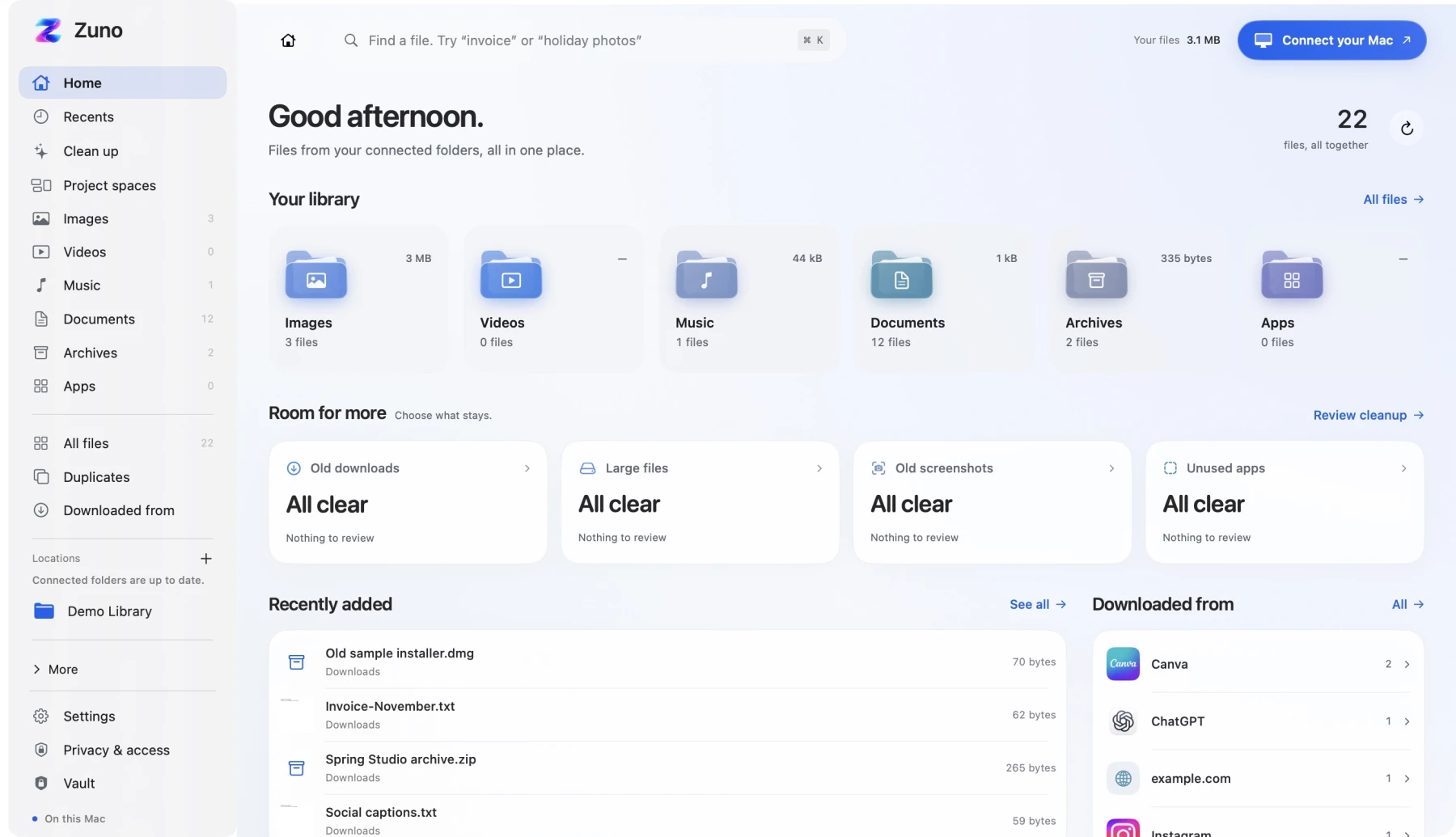
A closer look at Zuno

Real app capture · demonstration files

Use Show detail to read the interface. Scroll to explore; Escape to close.

A closer look at Zuno