Zuno guides / Client projects
How to organize client project files on a Mac
To organize client files on a Mac without moving them, collect the files you need in a Zuno Project Space. Connect the folders that hold your brief, images and notes, then add links from the library. The project gives you one working view while originals stay in their existing folders.
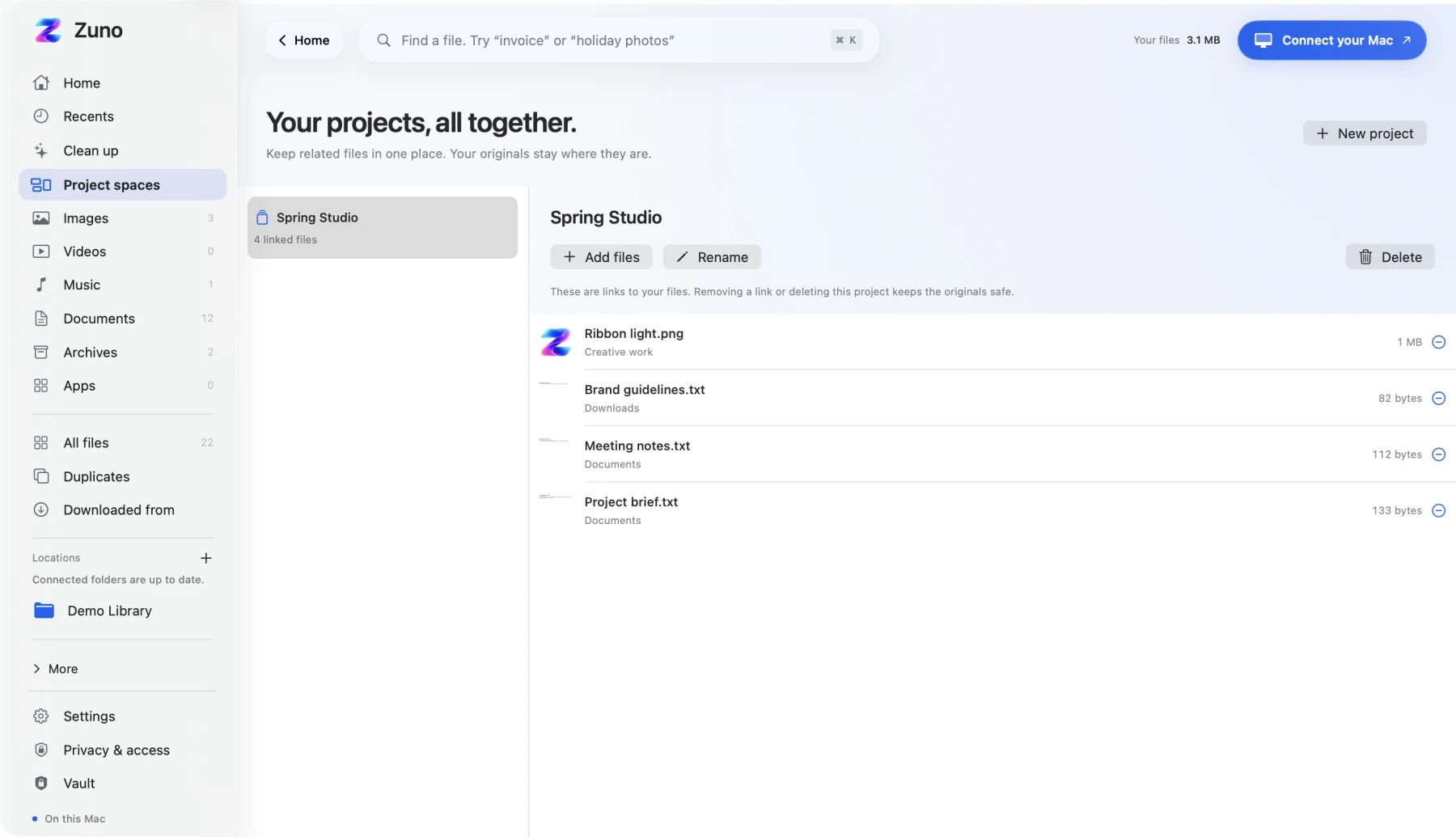
One project, several folders
Imagine you are preparing a client presentation. The brief arrived as a download. Your reference images live in Documents. The meeting notes are in another folder, and you need all three before you can start.
Moving everything into a new folder is one option. Sometimes, though, the existing locations already make sense. You want a convenient place to gather the material for this job.
For this example, call the project “Spring Studio.” Start with its brief, a few reference images and the latest notes. That small selection is easier to maintain than a project containing every file the client has ever sent.
Choose the files you actually need
Make a short list of the materials for your next task. Then identify the local folders that hold them. Zuno works with locations you approve through the macOS folder picker; connecting one folder does not grant access to every file on your Mac.
Install and activate Zuno if you have not already. It supports macOS 14 or later on Apple silicon and Intel Macs. A license is $5 USD once for one Mac, with internet required for activation and periodic license checks.
How to collect the files in Zuno Project Spaces
- Connect the relevant folders. Use Connect folder and choose the locations containing your project material. Give indexing time to make the files available in the library.
- Open Project spaces. Select it in the sidebar, then choose New project. If you have no projects yet, you can use Create your first project.
- Give the project a useful name. Enter “Spring Studio” for this example and choose Create project. Use a name you will recognize when you come back.
- Choose Add files. The picker shows files from your connected library. Search for a filename or folder to narrow the list, then select the brief, images and notes you need.
- Confirm your selection. Use the Add files action; its label includes the selected count, such as “Add 4 files.” The project now lists those linked files together.
- Check the result. Read through the filenames before starting work. Add anything missing, and remove links to material you do not need for this project.
You have created a project collection, without physically sorting or moving your Finder files. Removing a link later leaves the original file in place.
When Finder tags are enough
Finder also offers a built-in way to gather related material: tags. Apply the same project tag to files, then select that tag in Finder’s sidebar to see the tagged items together. Apple explains the controls in its guide to organizing files with tags.
If you already enjoy working with tags, that may cover your needs. Choose a Zuno Project Space when you want to maintain a specific collection inside Zuno alongside your connected file library.
Keep the project small enough to trust
Before your next client call, take a quick look at the collection. Add the current brief or revised images, and remove links to versions you no longer need in this working view. A clear filename helps you distinguish a draft from the file you intend to send.
A Project Space is not a backup or a shared client folder. It does not make a second copy of the source files or send them to another person. Keep your normal backup and sharing process for those jobs.
Common questions
Does adding a file to a project move it?
No. Zuno adds a link to the file. The original remains in its connected folder, so creating a project does not rearrange your existing Finder structure.
Will deleting the project delete its files?
No. Removing project links or deleting the project keeps the original files. This is different from choosing a file for cleanup and confirming a move to Trash.
Why is a file missing from the Add files picker?
Check that its folder is connected and indexing has progressed. Files already linked to the current project are hidden from that picker. Also check whether your search text is filtering out the file.
Start with one active client job. See Zuno’s file organizer and Project Spaces, then collect the handful of files you need for the next task.