Zuno guide / Private file copies
How to keep password-protected file copies on your Mac
To keep a password-protected copy of a file on your Mac, create a Zuno Vault, import the file, then lock the Vault. Zuno encrypts the imported copy and its filename. Your original, any exported copy, and copies in backups or cloud storage remain outside Vault protection.
Suppose a client sends you a signed agreement. You need to keep a copy for later, but you would prefer to put it somewhere that asks for a password before revealing it. That is the specific job this guide covers.
I’m Shivam, the creator of Zuno. Its Vault is a place for encrypted copies of regular files. Knowing which copy is protected is part of using it well.
Start by knowing where the original lives
Find the document you plan to import and note its folder. If it came through email or a cloud service, there may already be other copies. Importing it into Vault does not change those locations, remove an attachment, or encrypt a cloud backup.
For a first run, try a harmless sample document. You can learn the import, lock and export steps before choosing the private files you want to keep there. Zuno’s ordinary file-library index is separate and is not application-encrypted.
Keep an encrypted copy in Zuno Vault
- Open Vault in Zuno. If you have not installed the app, start at the official Zuno page. Zuno runs on macOS 14 or later, and activation and periodic license checks require internet access.
- Create your Vault password. Enter and confirm a password or passphrase of at least 12 characters. Keep it somewhere you can retrieve safely. Read the acknowledgement that a forgotten password cannot be recovered, select it when you understand it, then choose Create vault.
- Choose the document. Click Add files, select the PDF or other regular file in the macOS picker, and choose Encrypt copies. For a folder, create a suitable archive first and import that archive.
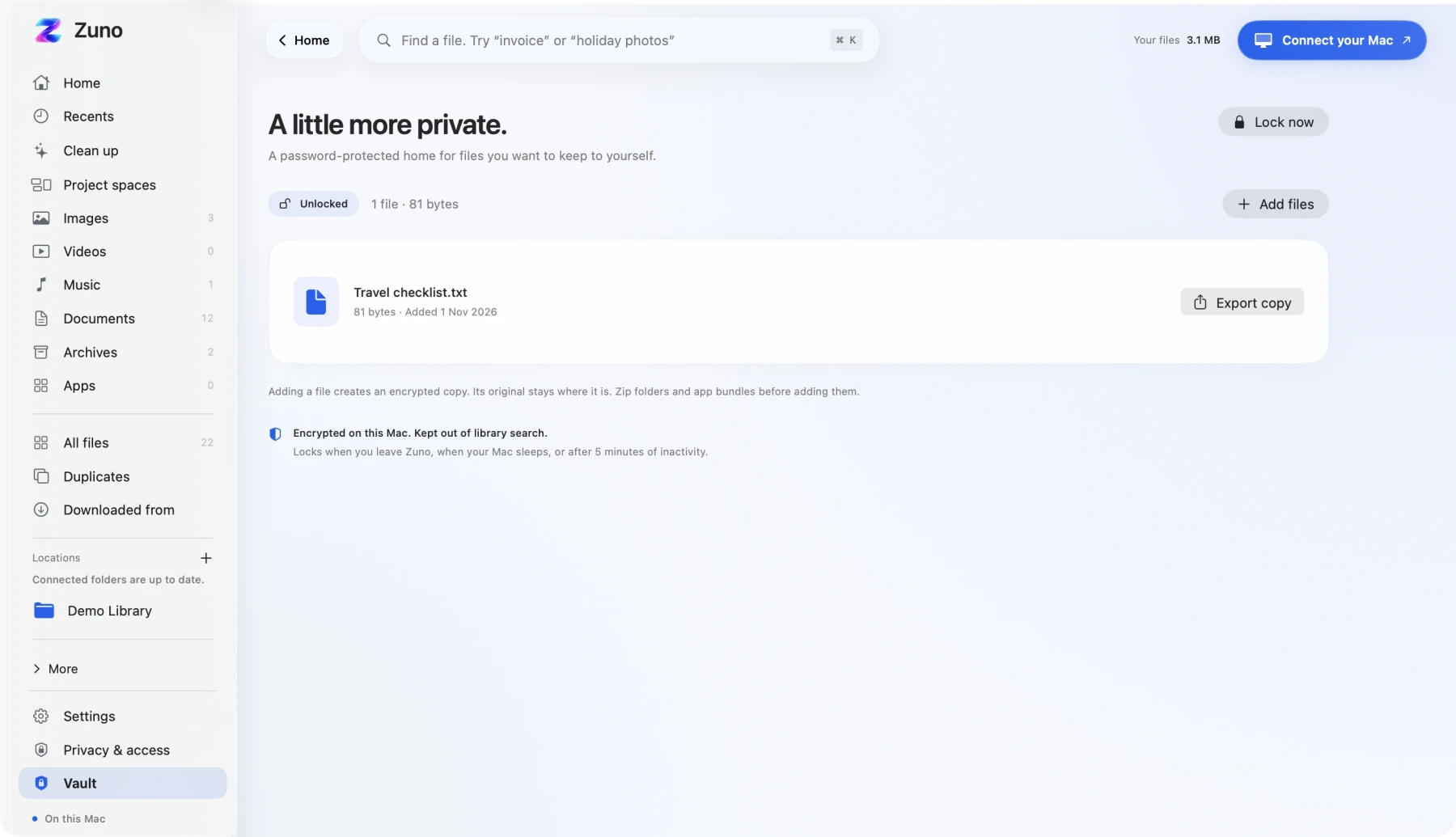
- Check the result. Wait for the import to finish and confirm that the file appears in the unlocked Vault. The import notice explains that an encrypted copy was saved and the original remains outside Vault.
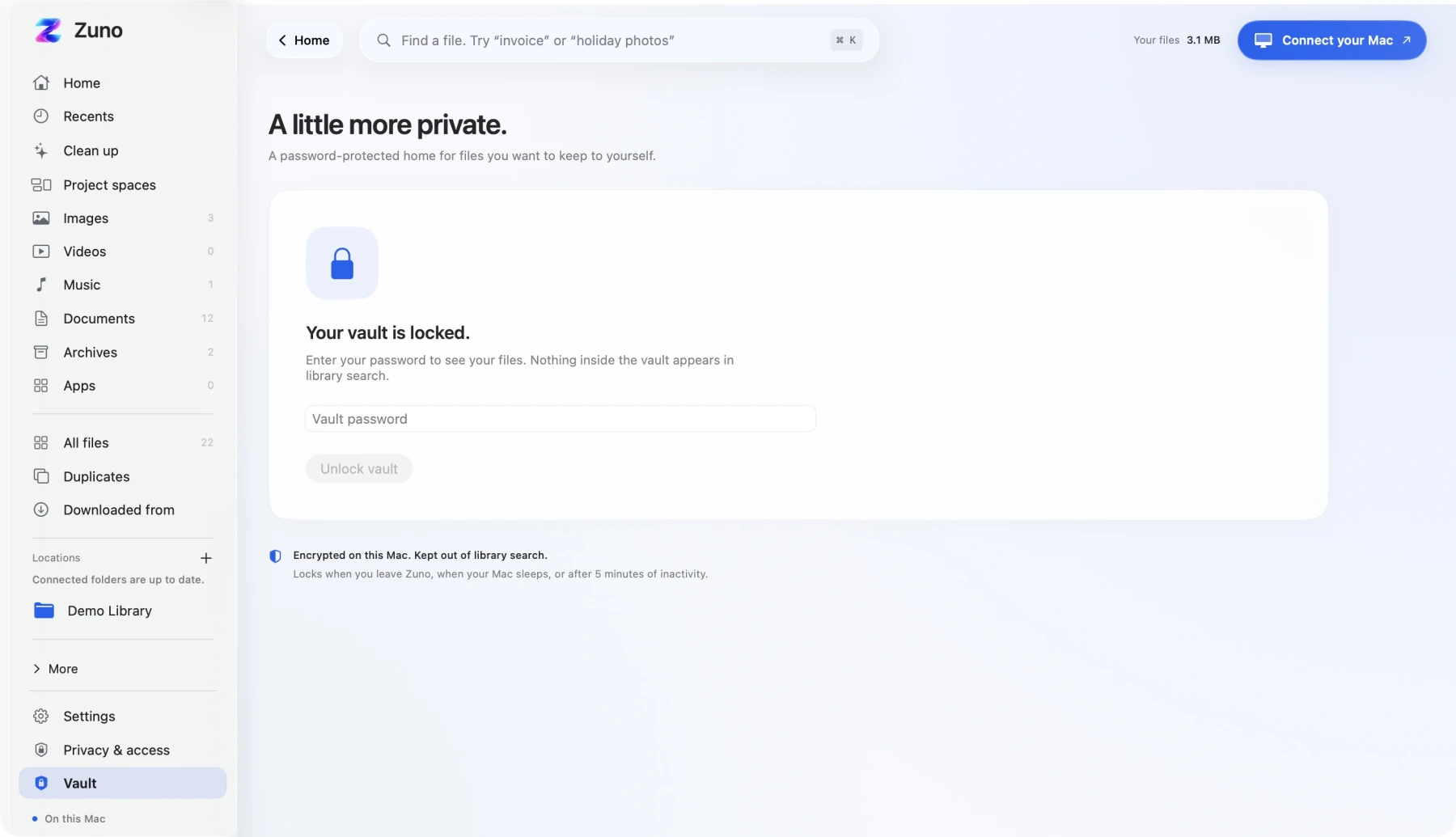
- Lock it when you finish. Choose Lock now. The file list is replaced by the locked screen. Contents and filenames inside Vault stay encrypted while it is locked.
- Export only when you need a copy outside. Enter your password and choose Unlock vault. Use the file’s export control to save a decrypted copy where you choose. That exported file is outside Vault protection, so treat its destination as a separate decision.
What to do with the original
You now have a protected copy and an unchanged original. Decide separately whether you still need that original in its current folder. Zuno does not automatically delete it when importing.
If you move an original to Trash, the Trash copy is still outside Vault protection. Removing a local file also does not remove other copies you may have in email, backups or cloud storage. Vault is not a secure-erasure tool.
A useful habit is to check the filename and destination whenever you export. For the client-agreement example, that means knowing whether you are looking at the encrypted Vault copy or a normal PDF saved in Documents.
A built-in option: an encrypted disk image
macOS also includes a way to store documents in an encrypted disk image using Disk Utility. You create the image with an encryption option and password, copy files into it, and eject it when finished. Apple’s Disk Utility guide explains the setup. This may suit you if you want a separate encrypted container without using Zuno.
Common questions
Does adding a PDF to Vault password-protect the original PDF?
No. Zuno creates an encrypted Vault copy. The PDF in its original folder remains unchanged, and a decrypted export is also a normal file outside Vault protection.
Can I recover my files if I forget the Vault password?
Zuno cannot recover a forgotten Vault password or reset it to unlock those files. Choose a password you can retain and keep a reliable record before using Vault for documents you need.
Can I search inside Vault from the main file library?
No. Vault contents stay out of library search. A separate original in a connected folder can still appear in that library; importing its copy does not remove the original.
Try the workflow with one document
See Zuno Vault and its screenshots, then try importing, locking and exporting a sample file. Once those steps feel clear, you can decide which private copies belong there.
For other file tasks, see the guides to organizing client project files and reviewing your Downloads folder.